> ## Documentation Index
> Fetch the complete documentation index at: https://support.rallly.co/llms.txt
> Use this file to discover all available pages before exploring further.
# Edit a Poll
> How to make changes to an existing meeting poll.
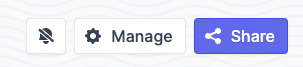
From the admin page, click on **Manage** to open the dropdown menu.
 ## Changing the title, description or location
To change these details of your poll:
1. Click **Manage**
2. Select **Edit details** from the dropdown menu
## Changing the title, description or location
To change these details of your poll:
1. Click **Manage**
2. Select **Edit details** from the dropdown menu
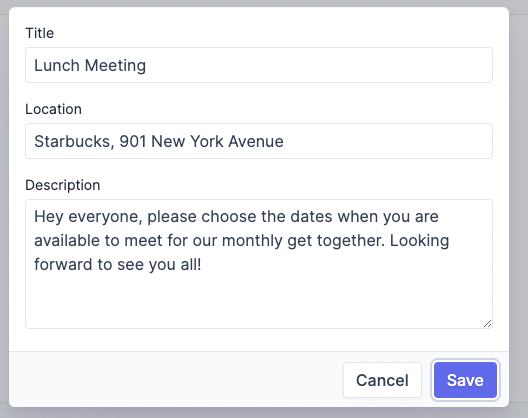 3. Enter the new details of your poll in to the form and click **Save**.
## Changing poll settings
1. Click **Manage**
2. Select **Edit settings** from the dropdown menu
3. Change the settings you want and click **Save**.
**Vote options** decides which answers participants can give. By default they
can answer **Yes**, **If need be** or **No**. Switch to **Yes** and **No** if
you want a straight answer with no maybes.
Once a participant has answered **If need be**, you can no longer switch that
poll to **Yes** and **No**, so their response stays valid. Switching a poll
back to offering **If need be** is always allowed.
## Adding or removing dates or times
1. Click **Manage**
2. Select **Edit options** from the dropdown menu
3. Enter the new details of your poll in to the form and click **Save**.
## Changing poll settings
1. Click **Manage**
2. Select **Edit settings** from the dropdown menu
3. Change the settings you want and click **Save**.
**Vote options** decides which answers participants can give. By default they
can answer **Yes**, **If need be** or **No**. Switch to **Yes** and **No** if
you want a straight answer with no maybes.
Once a participant has answered **If need be**, you can no longer switch that
poll to **Yes** and **No**, so their response stays valid. Switching a poll
back to offering **If need be** is always allowed.
## Adding or removing dates or times
1. Click **Manage**
2. Select **Edit options** from the dropdown menu
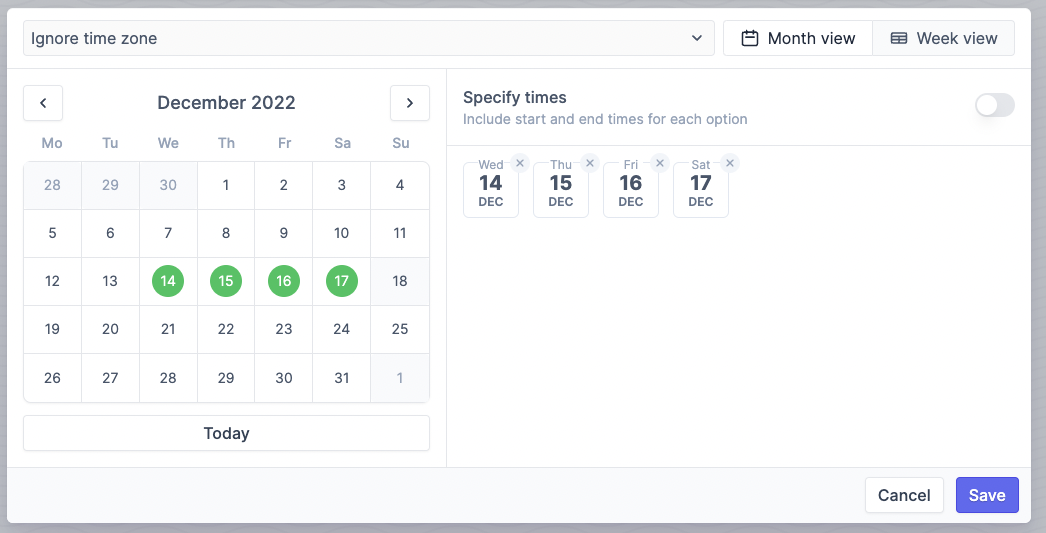 3. Add/remove options using the date/time picker