

These options are available from v4.6.0 and later and require an Enterprise license with a white-label add-on.
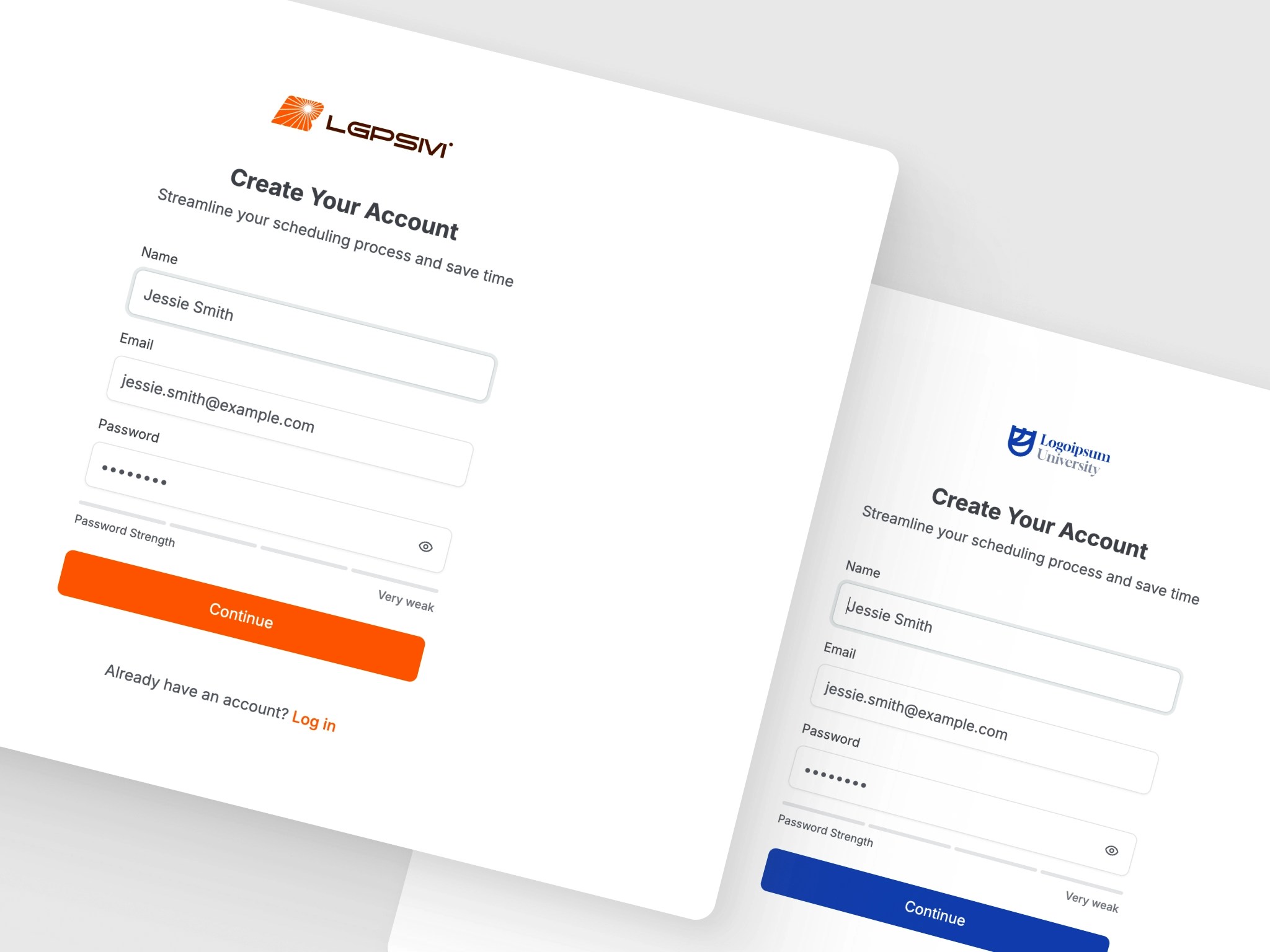
What you can customize
- App name - The name displayed in page titles, navigation, and emails
- Primary colors - Brand colors for both light and dark modes
- Logos - Your own logo for light mode, dark mode, and the icon used in emails
- Attribution - Hide the “Powered by Rallly” text in polls and emails
Configuring branding
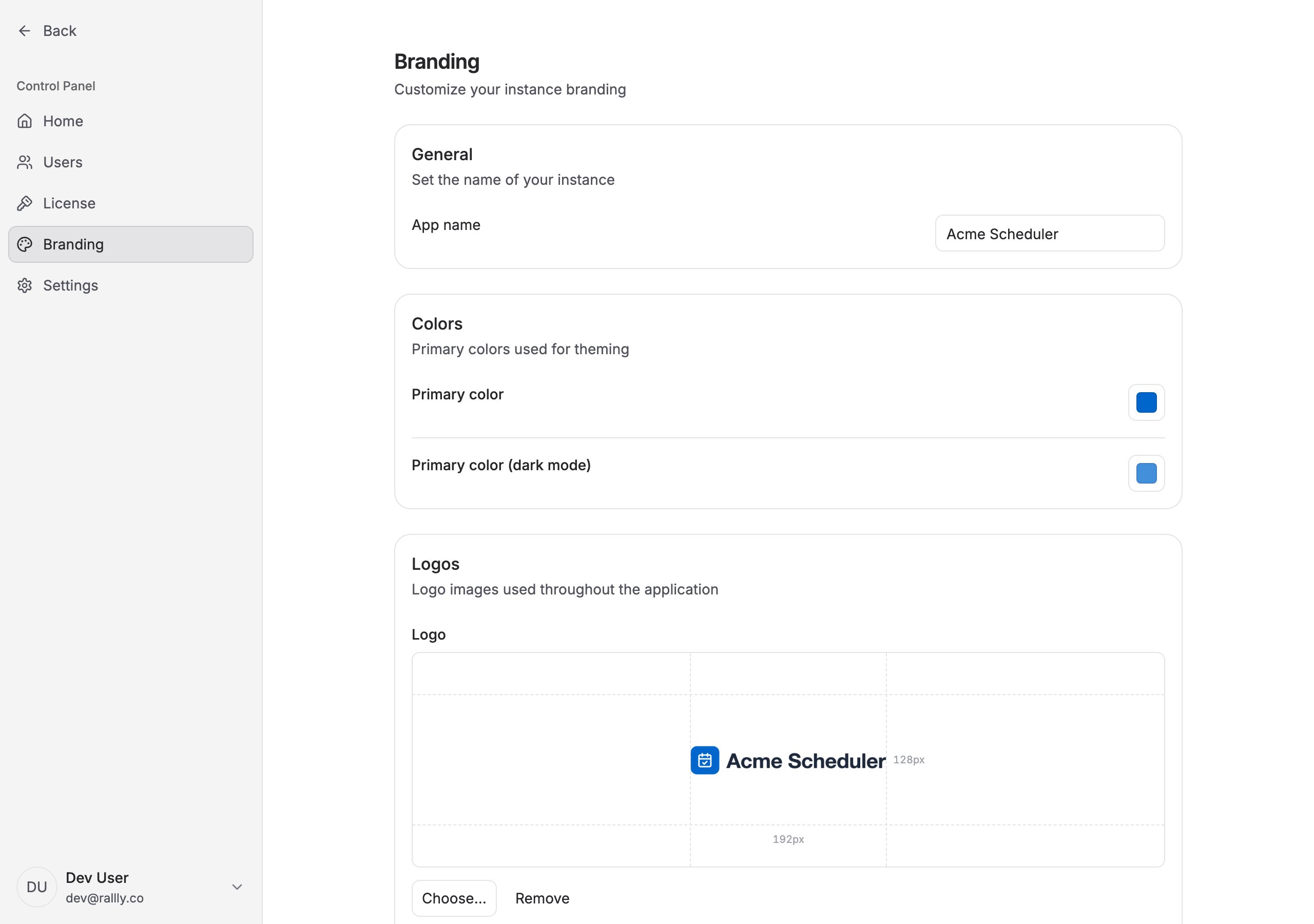
Branding is configured from the Control Panel under Branding. Changes take effect immediately, with no restart required.- Sign in as an administrator and go to
/control-panel/branding. - Set the app name, primary colors, logos, and attribution settings.
- Each field saves on its own, so you can change one setting at a time.
.env and others in the UI.
When a field is backed by an environment variable and has no saved value yet, the Branding page shows a note saying so. Saving a value in the UI overrides it.
Logos
The three logo slots serve different purposes:- Logo - The wordmark shown on light backgrounds
- Logo (dark mode) - The wordmark shown on dark backgrounds. Falls back to the light logo if not set
- Logo icon - A square icon shown on polls and at the top of emails
Uploading a logo
Logo uploads require object storage to be configured. The stack installed by the Rallly CLI includes storage by default, so this works out of the box. If your instance has no storage configured, the Branding page says so and you can point at externally hosted images withLOGO_URL, LOGO_URL_DARK and LOGO_ICON_URL instead. See External object storage for the storage variables.
The logo icon is raster only because it is embedded in emails, where SVG rendering is unreliable across mail clients.
Removing an uploaded logo clears the saved value, so the instance falls back to the environment variable if one is set, and to the Rallly logo otherwise.
Preparing your logo
There is no logo size setting. On the sign-in and registration pages your wordmark is drawn inside a fixed slot of 192 by 128 pixels, scaled down to fit inside it while keeping its aspect ratio, so it is never cropped or stretched. Elsewhere in the app it is scaled to a fixed height. Because the slot is fixed, the shape of your asset determines how large it renders:- Crop the asset tightly to the artwork. Whitespace baked into the file is scaled along with the logo, so a padded asset renders visually smaller than a tight one.
- Prefer SVG for the wordmark logos so they stay sharp at any size. If you upload a raster wordmark, supply it at roughly twice the slot size so it holds up on high density displays.
- Wide, horizontal wordmarks fill the slot better than tall or square ones.
- For the dark mode logo, supply a variant that reads well on a dark background rather than reusing the light one.
How branding applies to spaces
This behavior applies from v4.14.0. On earlier versions, spaces can override the instance branding with their own colors and logo.
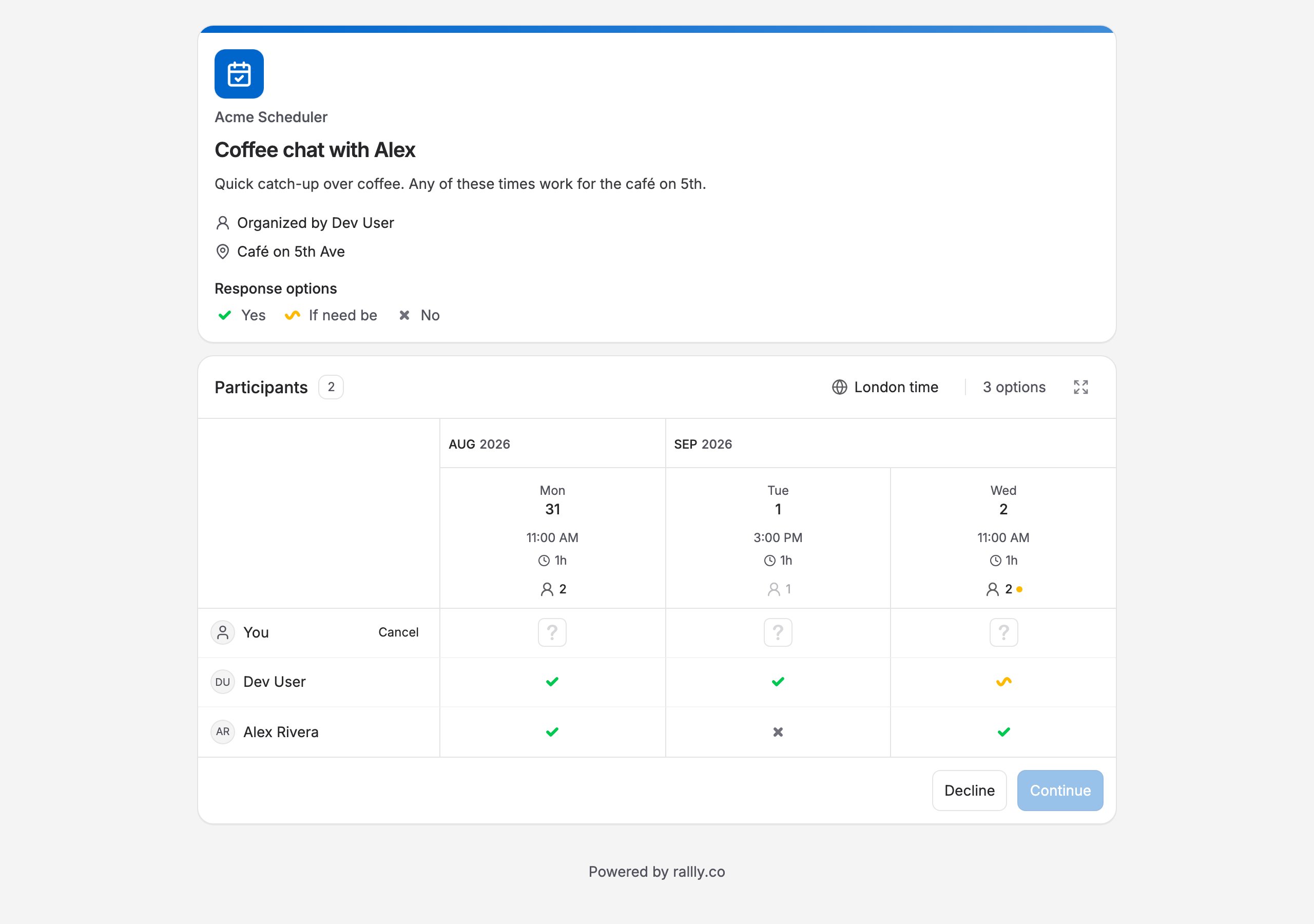
- Polls, scheduled event pages, and emails always use the instance’s colors, and polls display the instance’s logo icon and app name.
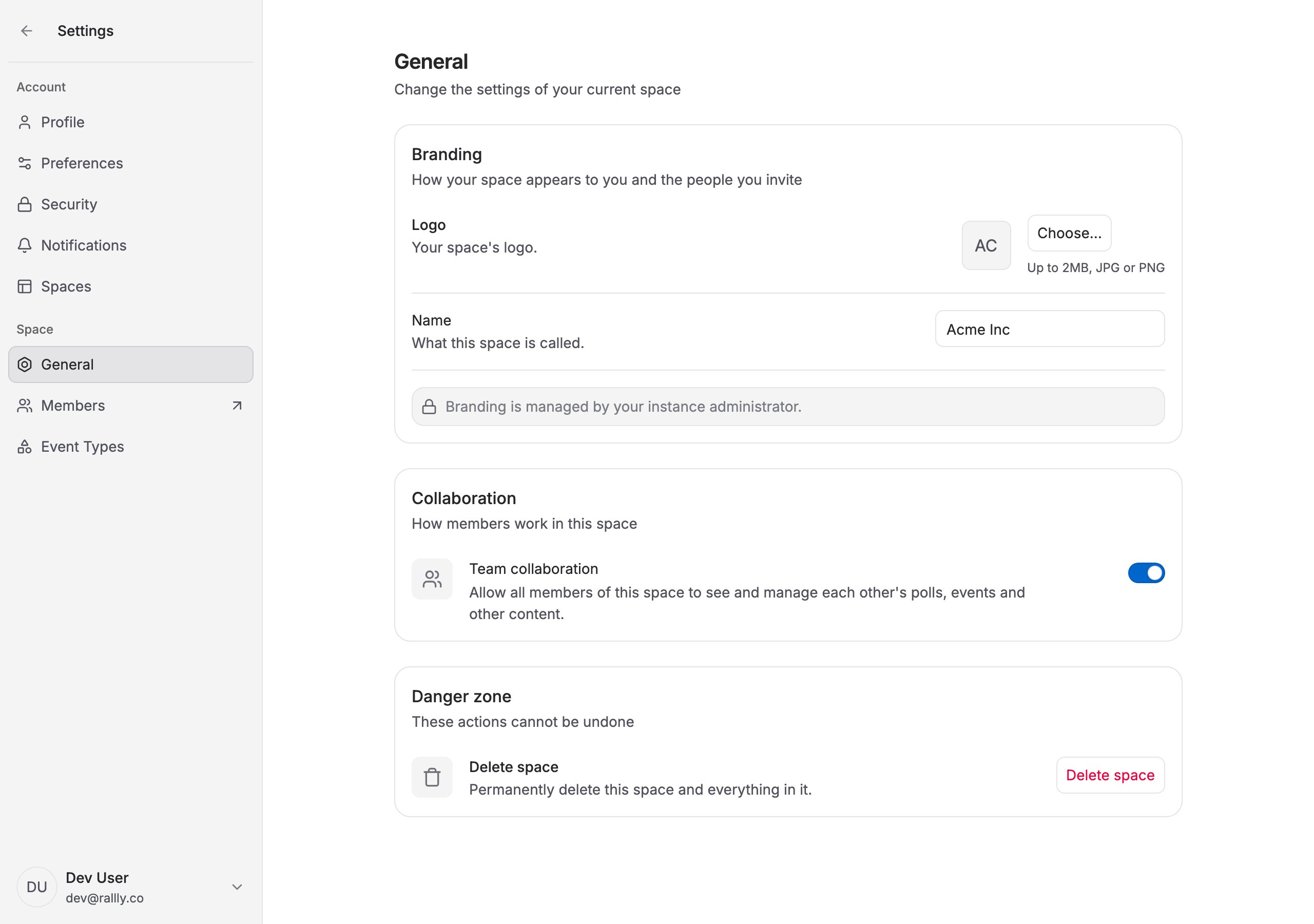
- The branding controls in each space’s settings are replaced with a note explaining that branding is managed by the instance administrator. Space admins can still set the space’s name and logo, but these are only used to identify the space inside the app.
Environment variables
Use these when you prefer to configure branding from.env, or when your instance has no object storage for uploads. Add the values to the .env file at the root of your self-hosted stack, then apply them with ./rallly.sh restart.
Requirements
- Enterprise License with White Label Add-on: White labeling features are only available with an active Enterprise license that includes the white label add-on.
- Without the add-on, the Branding page is read-only and your instance uses the default Rallly branding regardless of any saved or environment variable settings.