

Microsoft Teams requires a Pro subscription.
How it works
- You connect your Microsoft work or school account once, from your settings.
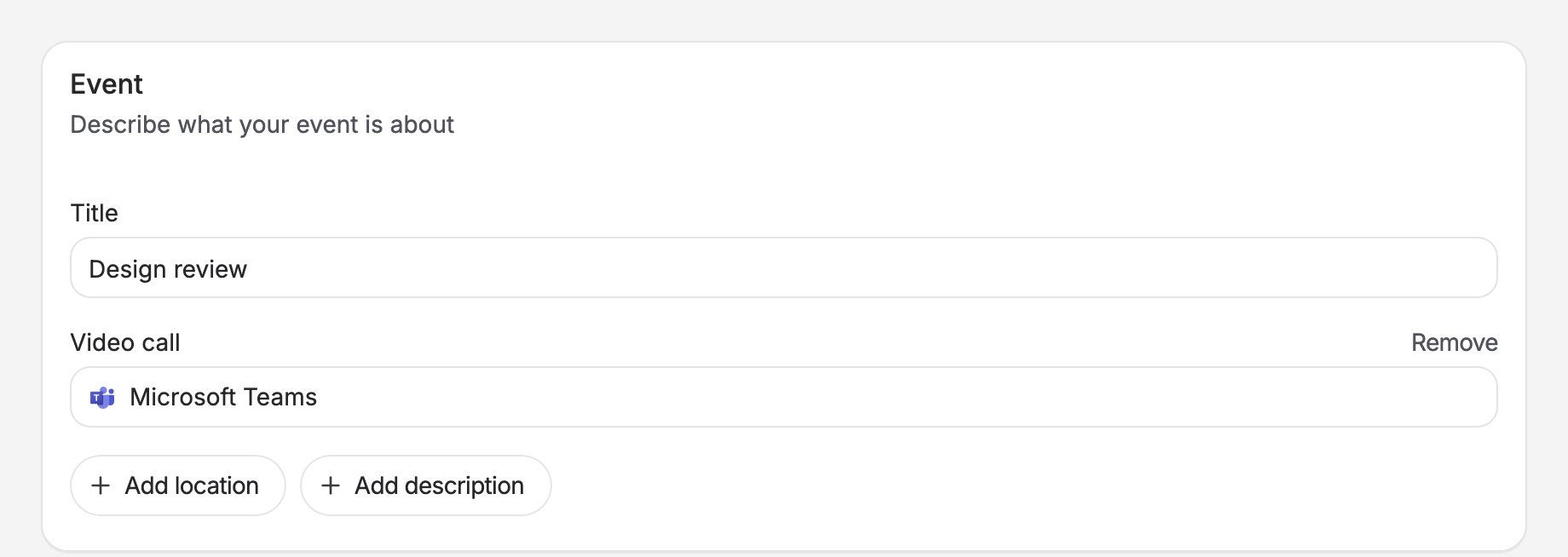
- When you create a poll, you choose Microsoft Teams as the video call. The poll shows “Microsoft Teams” to participants while voting is open; there is no link yet.
- When you finalize the poll, Rallly creates a Teams meeting for the chosen time on your Microsoft account and attaches the join link to the event.
Requirements
- A Microsoft work or school account with a Microsoft Teams license. Personal Microsoft accounts (Outlook.com, Hotmail, Live) are not supported: Microsoft does not let apps create Teams meetings for them, so Rallly asks Microsoft for a work or school account when you connect.
- You must have used Teams at least once with that account. An account whose Microsoft 365 plan does not include Teams cannot create meetings.
- Your organization must let you approve Rallly, or an administrator must approve it for the organization. See Admin approval.
Adding the app
1
Open Conferencing settings
In Rallly, open Settings from the sidebar and choose Conferencing.
2
Connect your account
Next to Microsoft Teams, click Connect. You are sent to Microsoft to pick your work or school account and sign in.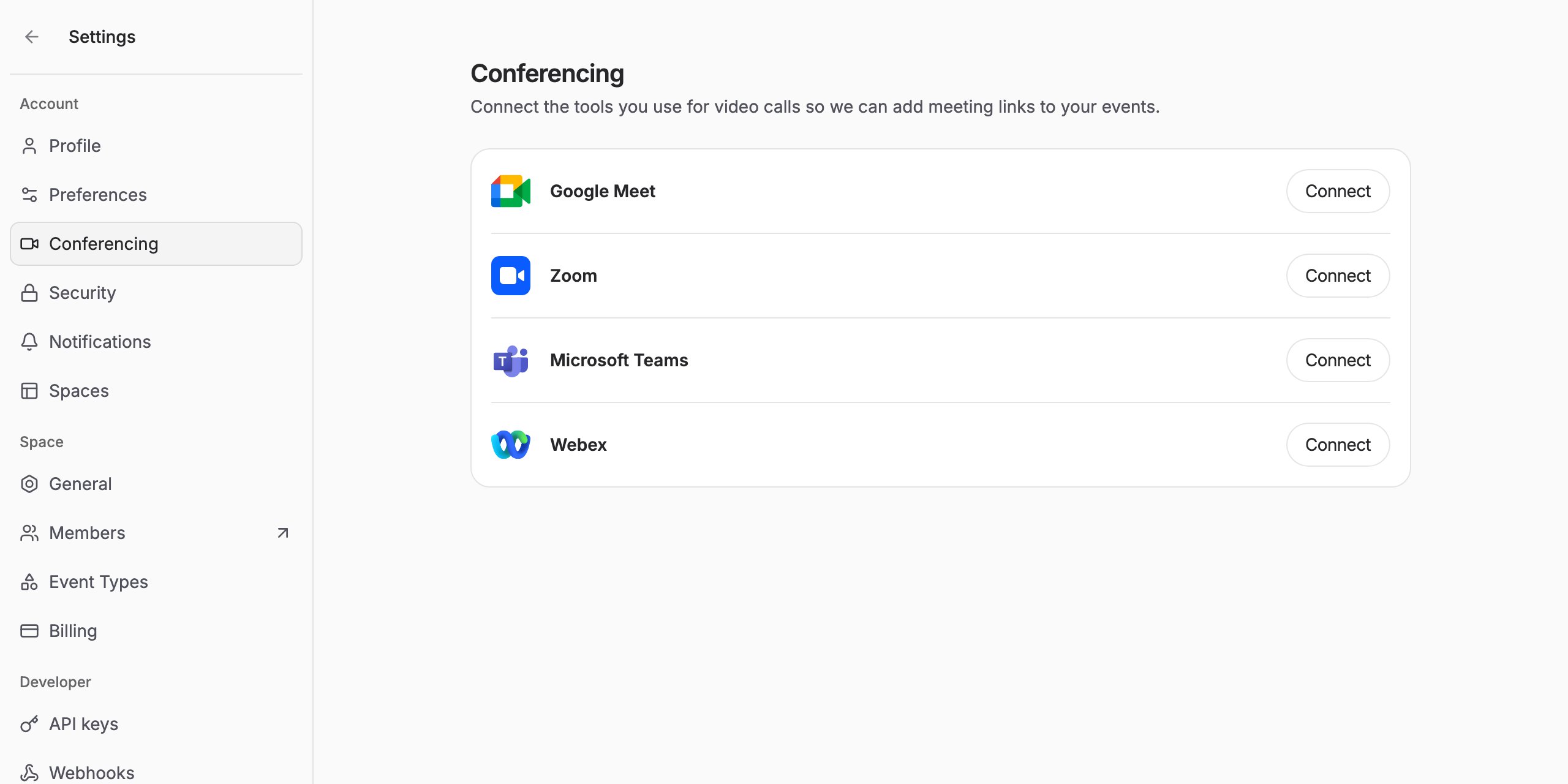
3
Approve the permissions
Microsoft shows what Rallly is asking for (listed under Permissions). Click Accept. You are returned to Rallly, where the email address of your Microsoft account appears next to Microsoft Teams.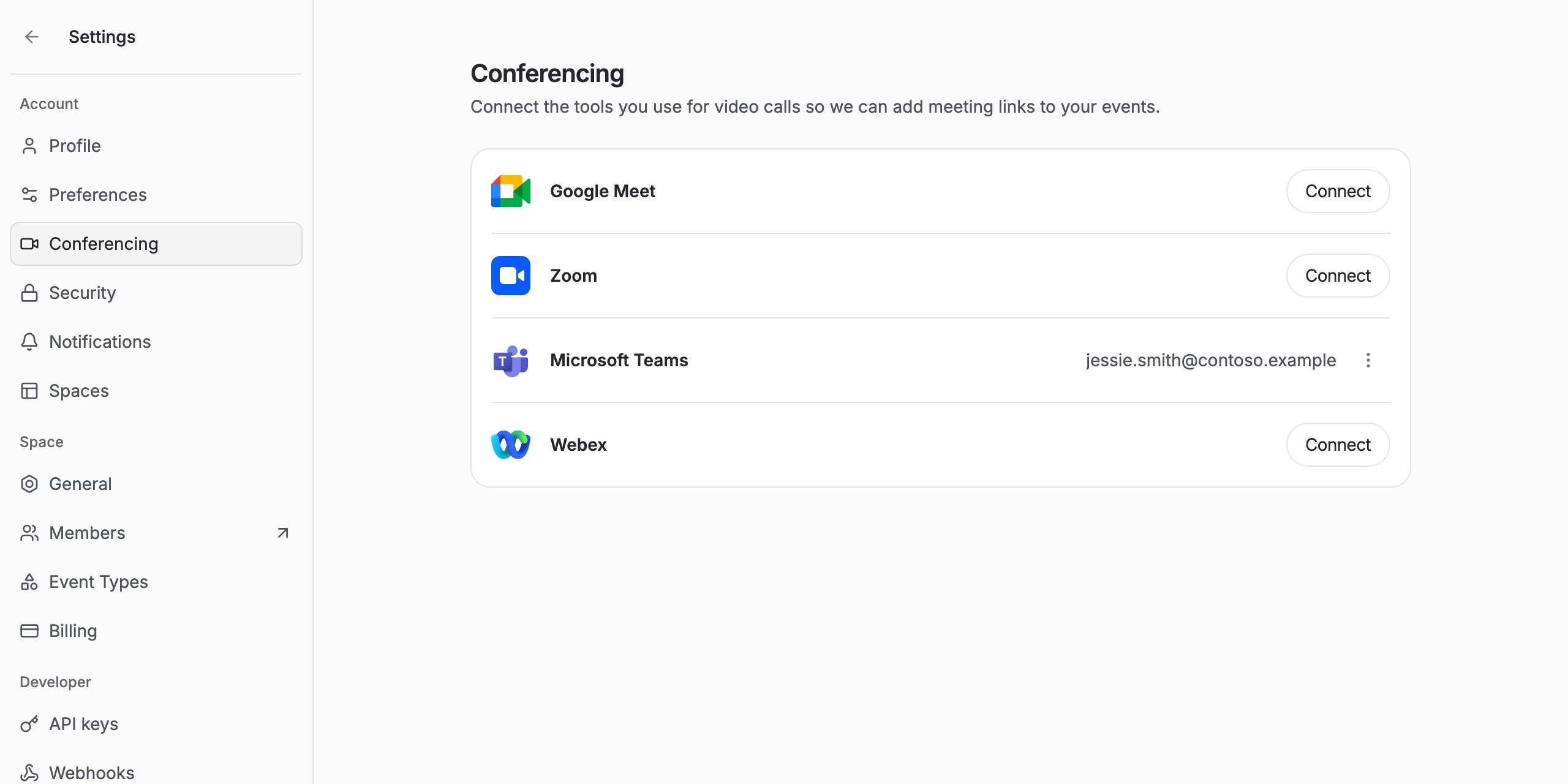
Admin approval
Many organizations do not let their users approve apps themselves. If yours is one of them, Microsoft shows “Need admin approval” instead of the permissions, and Rallly shows an error when you return. Only an administrator of your organization can resolve this. When the connection fails, Rallly offers a Copy link button. Send that link to your IT administrator. The administrator opens it, signs in with their administrator account and approves Rallly for the whole organization; they do not need a Rallly account. The link is:Using the integration
Choosing Microsoft Teams for a poll
When creating a poll, click Add video call and choose Microsoft Teams. The form shows “Microsoft Teams” as the video call for this poll.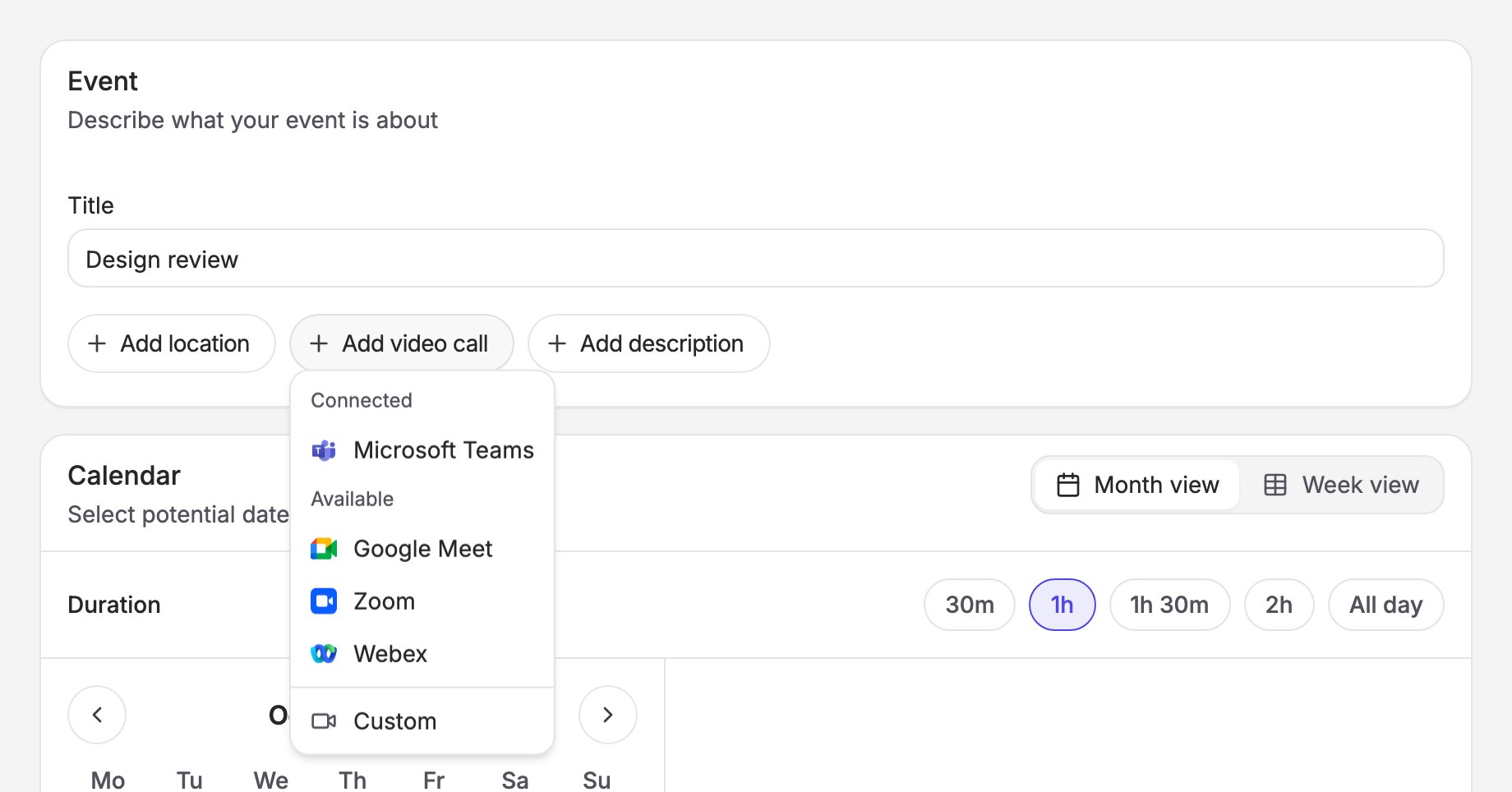
Finalizing the poll
When you finalize the poll and pick the winning time, Rallly:- Creates a Teams meeting for that time on your Microsoft account.
- Attaches the join link, meeting ID and passcode to the event.
- Includes them in the calendar invite (
.ics) and in the confirmation emails sent to you and to participants.
Which account hosts the meeting
The meeting is created on the Microsoft account of the poll’s organizer. If a space member finalizes a poll organized by someone else, the meeting is still created on the organizer’s Microsoft account, and the organizer is the host.Permissions
When you connect, Rallly asks Microsoft for these permissions:
Rallly uses
OnlineMeetings.ReadWrite only to create a meeting when you finalize a poll and to create and immediately delete one test meeting when you connect. Rallly does not read your other meetings, chats, recordings, transcripts, files, contacts, calendar or email, and does not join or record meetings.
Data Rallly stores
For a connected Microsoft account, Rallly stores:- Your Microsoft account id and email address, to identify the connection and show it in your settings.
- The access token and refresh token Microsoft issues, encrypted at rest, so Rallly can create meetings on your behalf without asking you to sign in each time.
Removing the app
From Rallly
- Open Settings, then Conferencing.
- Next to Microsoft Teams, click the More options button and choose Disconnect.
From your Microsoft account
- Open My Apps and sign in with the account you connected.
- Find Rallly, open its menu and choose Manage your application.
- Choose Revoke permissions and confirm.