

How it works
- You connect your Zoom account once, from your settings.
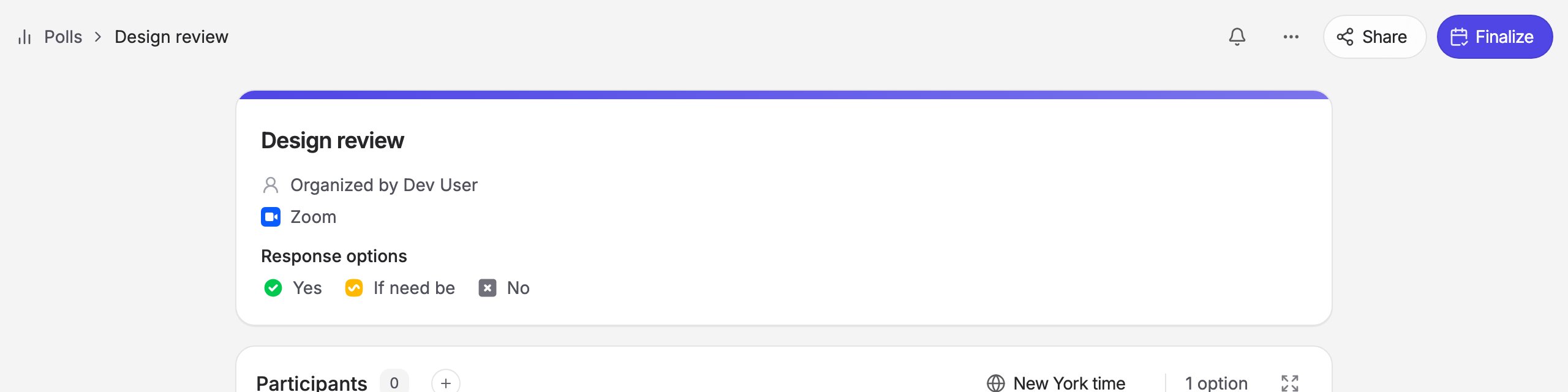
- When you create a poll, you choose Zoom as the video call. The poll shows “Zoom” to participants while voting is open; there is no link yet.
- When you finalize the poll, Rallly creates a Zoom meeting for the chosen time on your Zoom account and attaches the join link to the event.
Requirements
- A Zoom account. A free Zoom plan is enough.
Adding the app
1
Open Conferencing settings
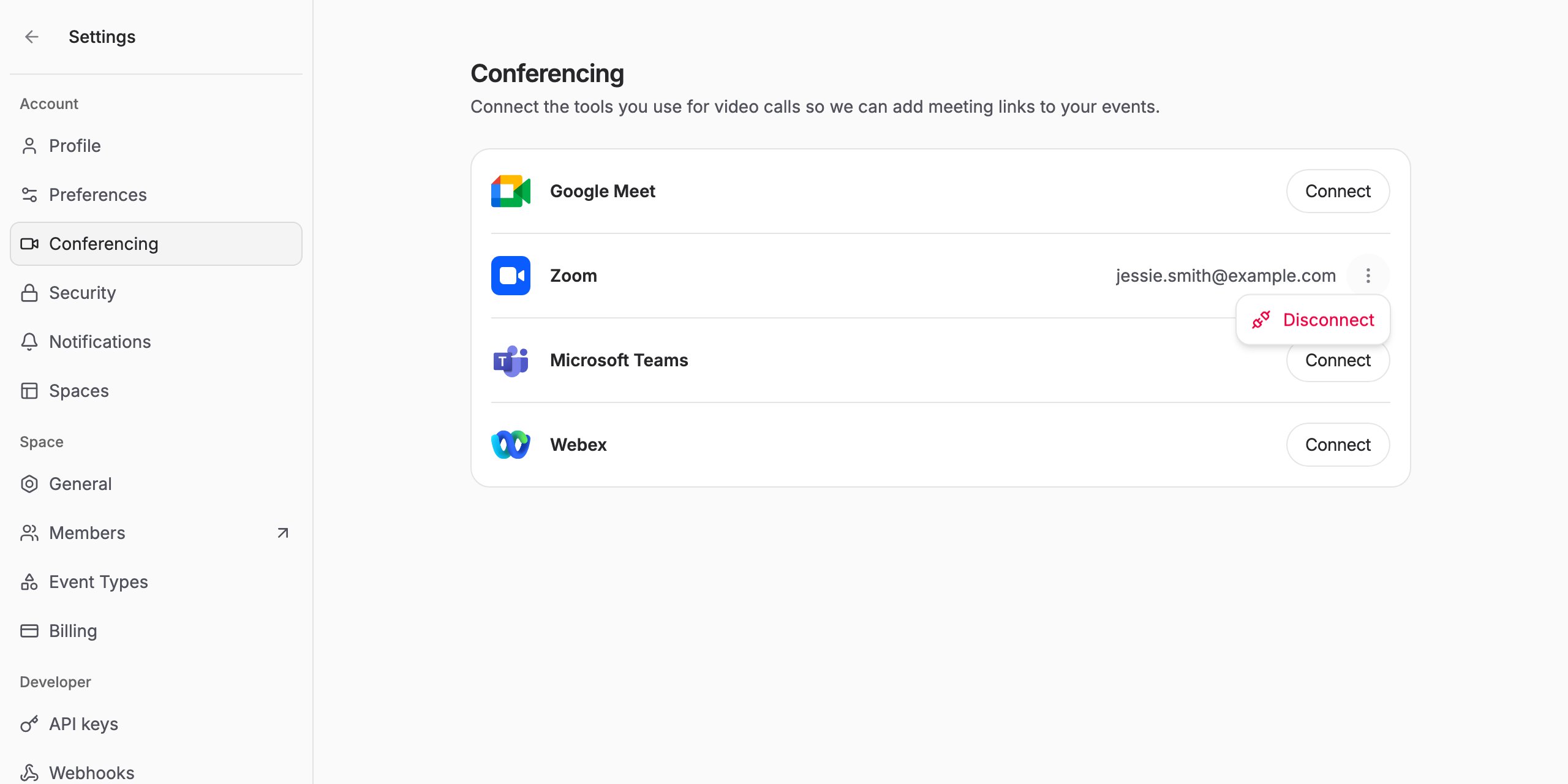
In Rallly, open Settings from the sidebar and choose Conferencing.
2
Connect your account
Next to Zoom, click Connect. You are sent to Zoom to sign in and approve the connection.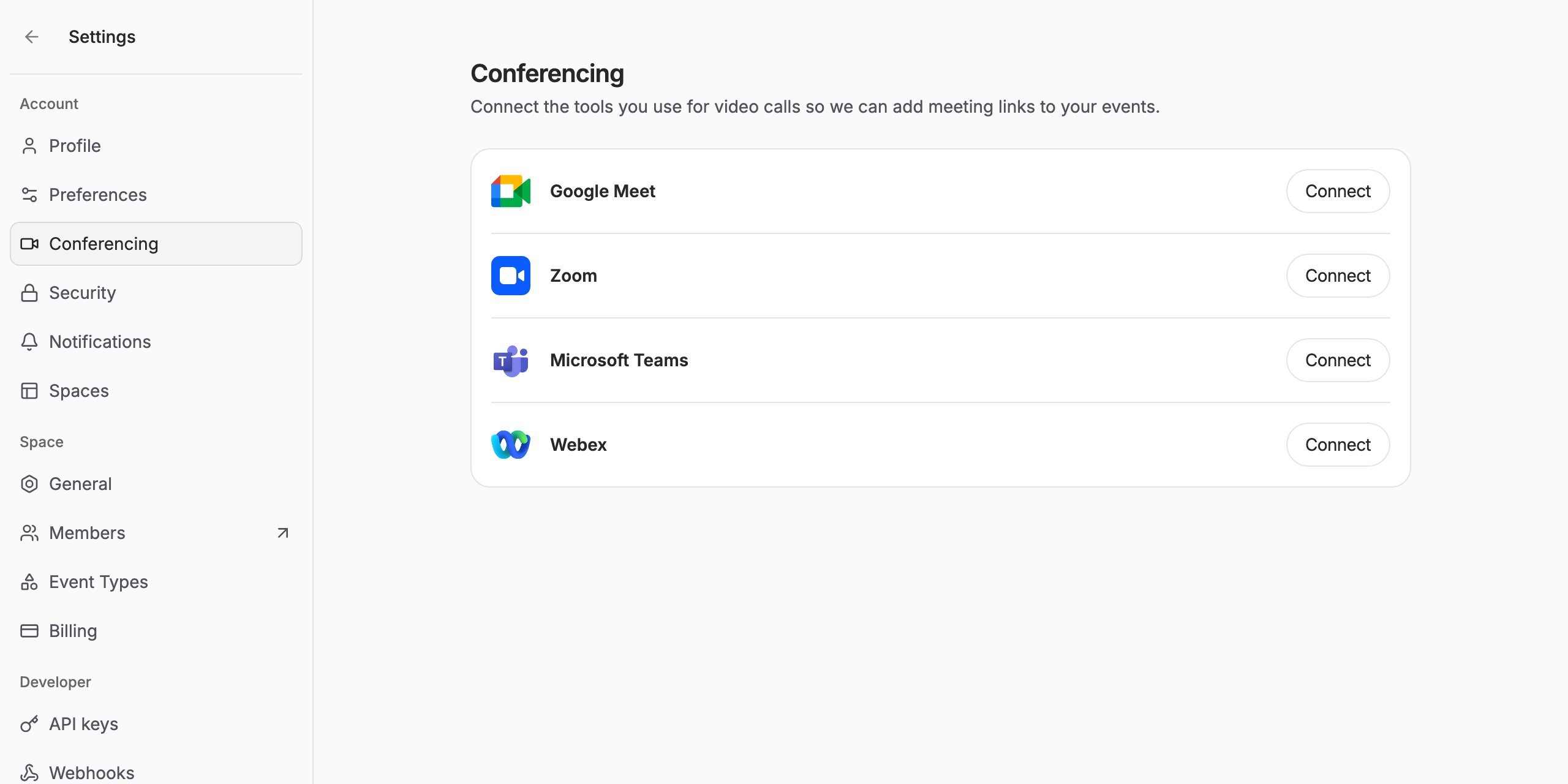
3
Approve the permissions
Zoom shows what Rallly is asking for (listed under Permissions). Click Allow. You are returned to Rallly, where the email address of your Zoom account appears next to Zoom.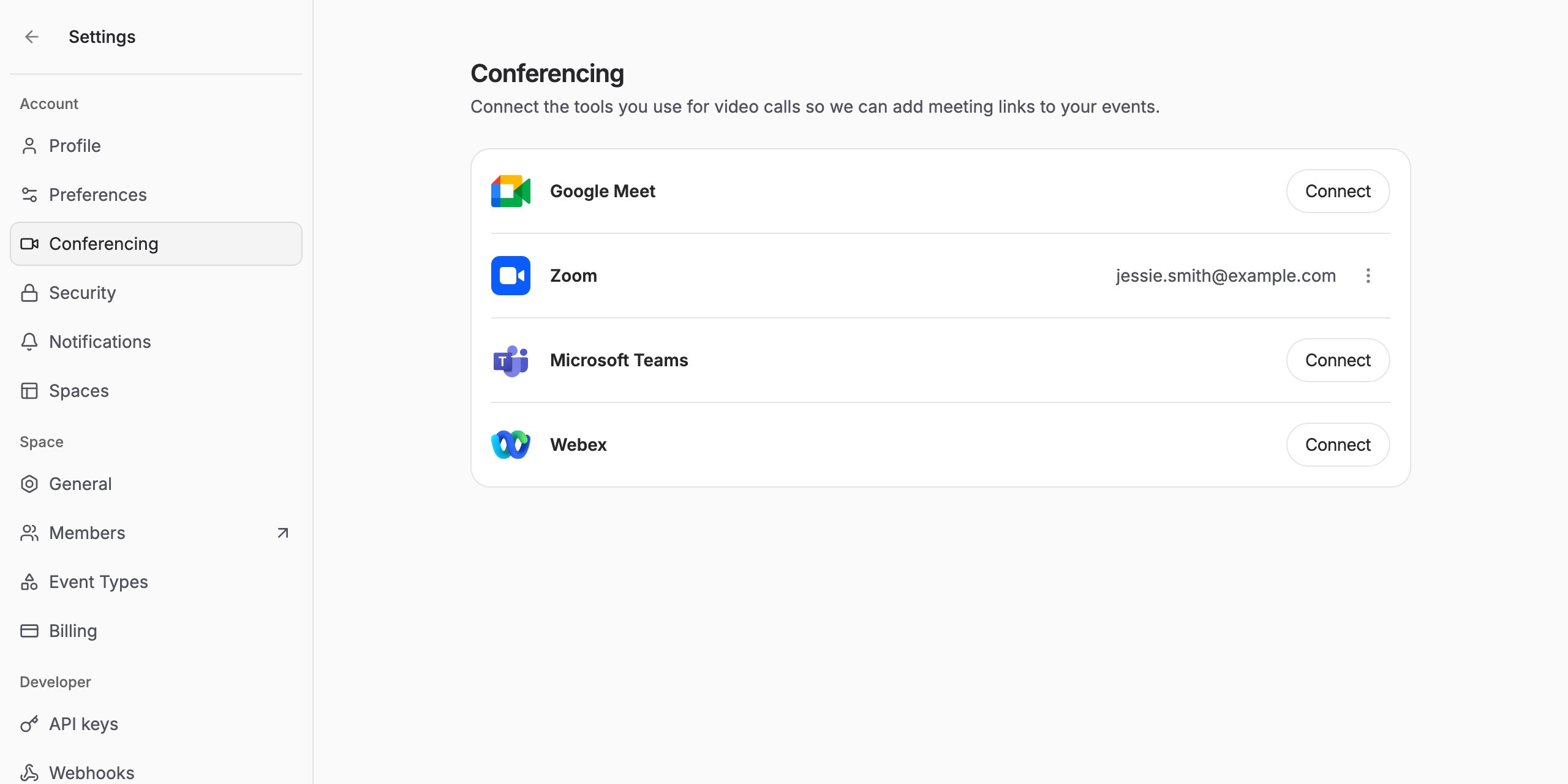
Using the integration
Choosing Zoom for a poll
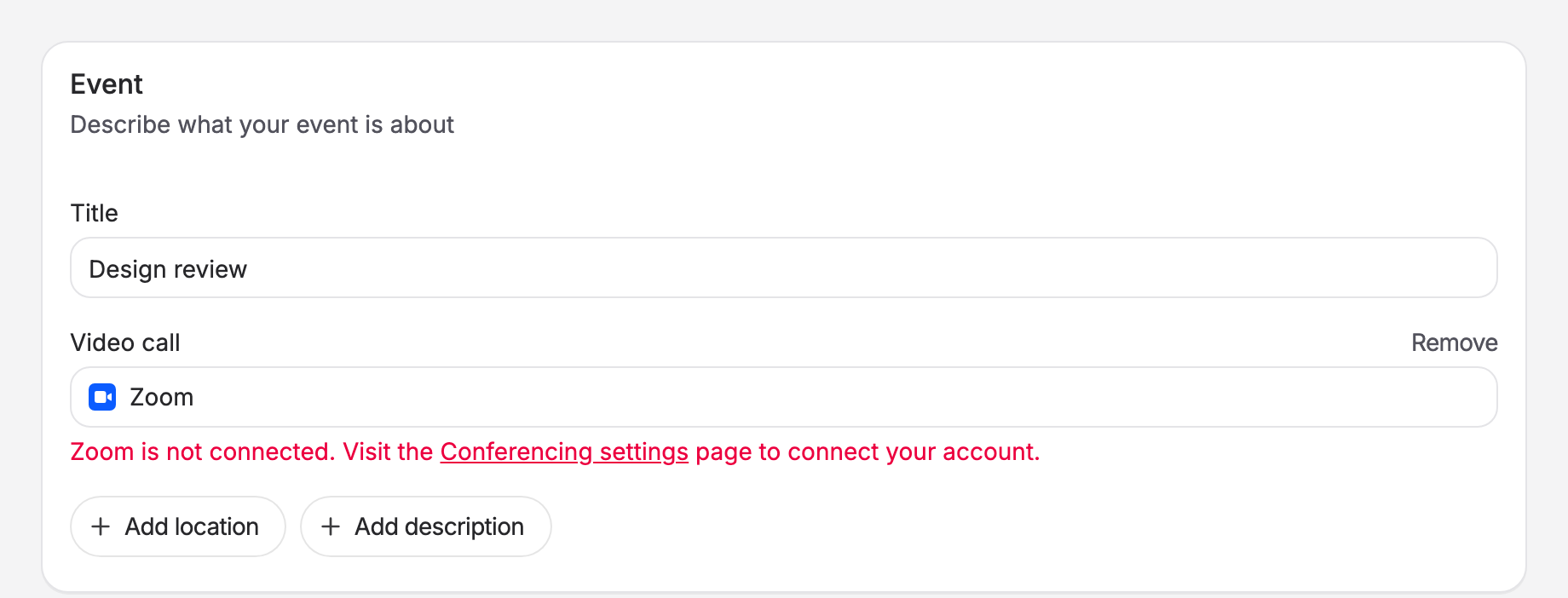
When creating a poll, click Add video call and choose Zoom.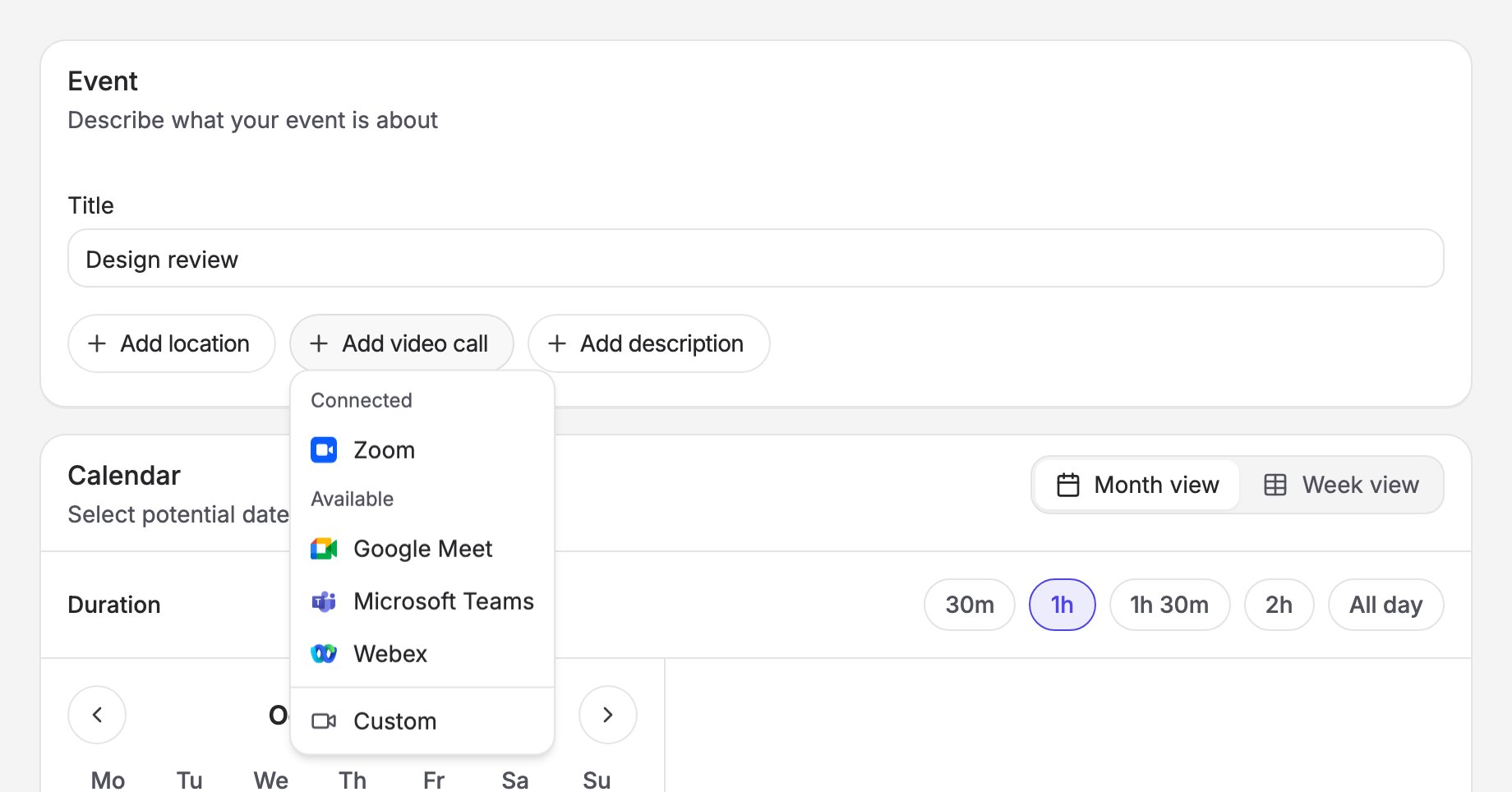
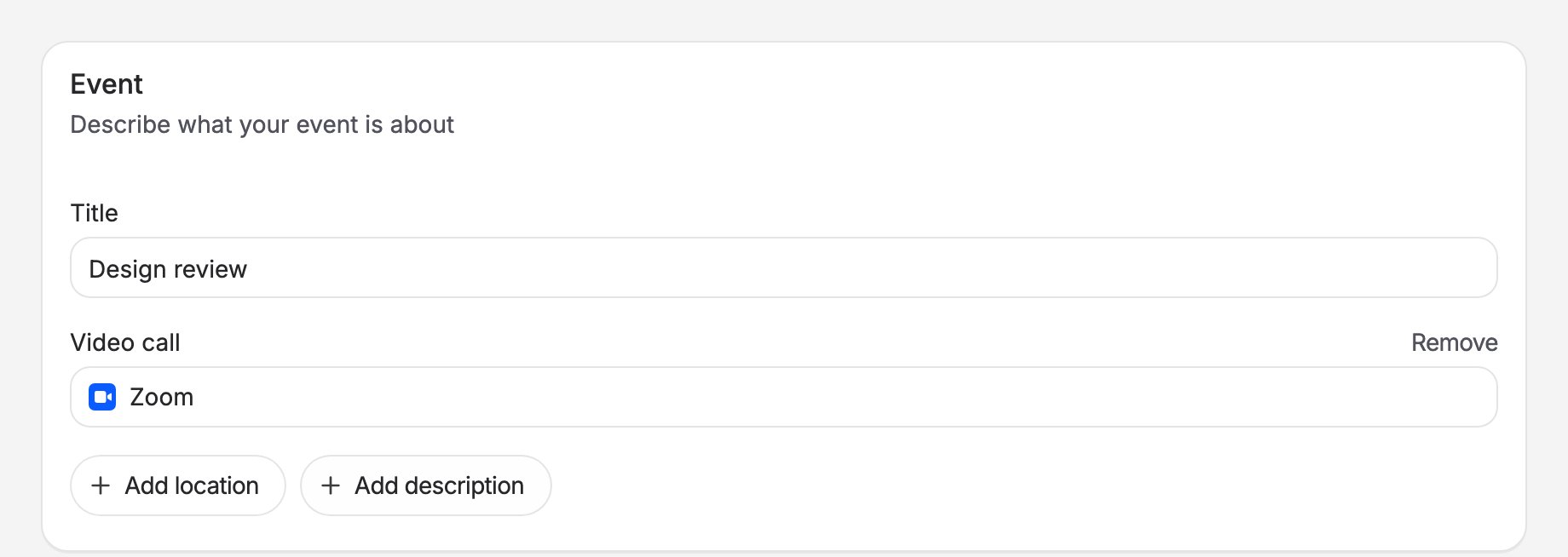
Finalizing the poll
When you finalize the poll and pick the winning time, Rallly:- Creates a scheduled Zoom meeting on your account for that date and time, using the poll title as the meeting topic.
- Attaches the join link to the event.
- Includes the link in the calendar invite (
.ics) and in the confirmation emails sent to you and to participants.
Which account hosts the meeting
The meeting is created on the Zoom account of the poll’s organizer. If a space member finalizes a poll organized by someone else, the meeting is still created on the organizer’s Zoom account.Permissions
When you connect, Rallly asks Zoom for these permissions:
Rallly does not read your existing meetings, recordings, contacts or chat, and does not join or record meetings.
Data Rallly stores
For a connected Zoom account, Rallly stores:- Your Zoom account id and email address, to identify the connection and show it in your settings.
- The access token and refresh token Zoom issues, encrypted at rest, so Rallly can create meetings on your behalf without asking you to sign in each time.
Removing the app
From Rallly
- Open Settings, then Conferencing.
- Next to Zoom, click the More options button and choose Disconnect.
From Zoom
You can also remove the app from the Zoom side:- Sign in to the Zoom App Marketplace.
- Click Manage, then Added Apps.
- Find Rallly and click Remove.